PNG and SVG export#
Additional dependencies#
To use Bokeh’s export functions, you need a headless browser backend. Bokeh supports two options: Playwright and Selenium.
Using Playwright#
Playwright is fast and easy to install:
pip install playwright
playwright install chromium
Separate browser driver binaries do not have to be managed.
Note
Currently, when both Playwright and Selenium are installed, Bokeh defaults
to Selenium to preserve existing behaviour. To opt in to Playwright,
set BOKEH_EXPORT_BACKEND=playwright or pass backend="playwright"
to export functions. See Choosing a backend below. This
default order may change in a future release.
Using Selenium#
Selenium requires both the selenium Python package and a
web driver binary on your PATH:
geckodriver for Firefox
ChromeDriver for Chrome / Chromium
You can install these dependencies in various ways. The recommended way is to
use conda and install Selenium together with geckodriver.
conda install selenium geckodriver -c conda-forge
In order for geckodriver to work, you also need to have Firefox available on your system. See Supported platforms in the geckodriver documentation to make sure your version of Firefox is compatible.
You can also install Firefox from conda-forge:
conda install firefox -c conda-forge
Installing Firefox with conda is helpful to make sure that you are
running compatible versions of geckodriver and Firefox.
conda install selenium python-chromedriver-binary -c conda-forge
After downloading and installing with conda, make sure that the
executable chromedriver (chromedriver.exe on Windows) is
available in your PATH. See the chromedriver-binary documentation for
more information.
ChromeDriver requires a compatible version of Google Chrome or Chromium to be available on your system. See the ChromeDriver documentation for details about which version of ChromeDriver works with which version of Chrome or Chromium.
pip install selenium
After installing Selenium, you need to download and install the geckodriver binary from the geckodriver repository on GitHub. Make sure that geckodriver is available in your PATH. See the geckodriver documentation for more information.
In order for geckodriver to work, you also need to have Firefox available on your system. See Supported platforms in the geckodriver documentation to make sure your version of Firefox is compatible.
pip install selenium chromedriver-binary
After downloading and installing with pip, make sure that the
executable chromedriver (chromedriver.exe on Windows) is
available in your PATH. See the chromedriver-binary documentation for
more information.
ChromeDriver requires a compatible version of Google Chrome or Chromium to be available on your system. See the ChromeDriver documentation for details about which version of ChromeDriver works with which version of Chrome or Chromium.
Choosing a backend#
By default (auto), Bokeh tries Selenium first and falls back to
Playwright. This preserves existing behaviour for users who already have
Selenium installed. If only Playwright is installed, it is used
automatically. You can override the auto-detection in three ways:
Environment variable — set BOKEH_EXPORT_BACKEND to one of
auto, playwright, or selenium:
BOKEH_EXPORT_BACKEND=playwright python my_script.py
Per-call parameter — pass backend directly to any export function:
from bokeh.io import export_png

export_png(plot, filename="plot.png", backend="playwright")
You can also pass a browser instance directly to any export function using the
webdriver keyword argument. This accepts a Selenium WebDriver or a
Playwright Browser / BrowserContext. The appropriate backend is
selected automatically from the type of instance passed, overriding the
backend parameter and the export_backend setting.
Global settings — update the export_backend setting:
from bokeh.settings import settings

settings.export_backend = "playwright"
Exporting PNG images#
Bokeh can generate RGBA-format Portable Network Graphics (PNG) images from
layouts using the export_png() function. This functionality renders the
layout in memory and then captures a screenshot. The output image will
have the same dimensions as the source layout.
To create a PNG with a transparent background set the
Plot.background_fill_color and Plot.border_fill_color properties to
None.
plot.background_fill_color = None
plot.border_fill_color = None
Sizing variability#
Responsive sizing modes may generate layouts of unexpected size and aspect
ratio. For reliable results, use the default fixed sizing mode.
Example usage#
Usage is similar to the save() and show() functions.
from bokeh.io import export_png

export_png(plot, filename="plot.png")
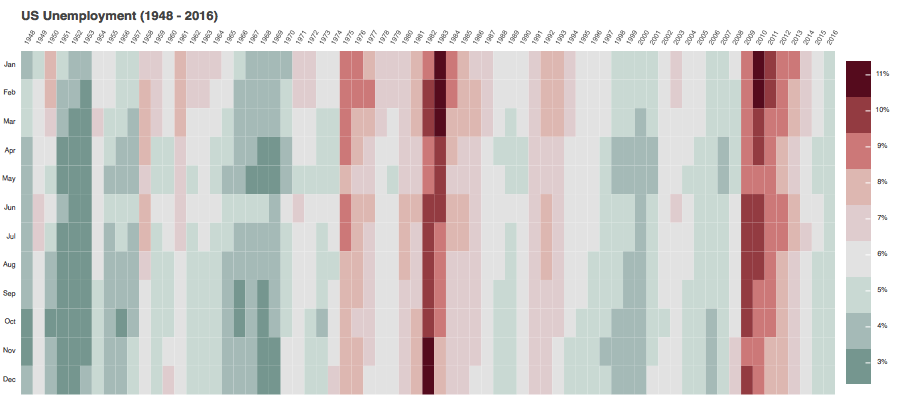
Image objects#
To access an image object through code without saving to a file, use the
lower-level function get_screenshot_as_png().
from bokeh.io.export import get_screenshot_as_png

image = get_screenshot_as_png(obj, height=height, width=width, driver=webdriver)
Exporting SVG images#
Bokeh can also replace the HTML5 Canvas plot output with a Scalable Vector Graphics (SVG) element that can be edited in image editing programs such as Adobe Illustrator and/or converted to PDF.
The SVG output isn’t as performant as the default Canvas backend when it comes to rendering a large number of glyphs or handling lots of user interactions such as panning.
To activate the SVG backend, set the Plot.output_backend attribute to
"svg".
# option one
plot = Plot(output_backend="svg")
# option two
plot.output_backend = "svg"
To create an SVG with a transparent background, set the
Plot.background_fill_color and Plot.border_fill_color
properties to None, same as for PNG exports.
You can export an SVG plot in several ways:
With code:
Use the
export_svg()utility function that lets you save a plot or a layout of plots as a single SVG file.from bokeh.io import export_svg export_svg(plot, filename="plot.svg")
Use the
export_svgs()utility function that lets you export a layout of plots as a set of independent SVG files.from bokeh.io import export_svgs export_svgs(plot, filename="plot.svg")
From browser:
Use the SVG-Crowbar bookmarklet that adds a prompt to download each plot as an SVG file. This tool is fully compatible with Chrome and should work with Firefox in most cases.
Use the
SaveToolfrom the toolbar but note that the exported files will have a blank area where the toolbar was.